
Die Seite "Workflow tutorial" wird gelöscht. Bitte seien Sie vorsichtig.
Workflow tutorial
Joeri Exelmans hat diese Seite bearbeitet vor 2 Jahren
Workflow tutorial
This tutorial focuses on the use of a visual diagramming approach for creating FTGPM++ diagrams as defined in our ontology. These diagrams can be used in the enactment process.
If you are running a development instance, you can connect to a modified version of diagrams.net at http://localhost:8700/?p=ftgpm;dtdesign&dev=1&stealth=1.
Otherwise, we provide a demo instance.
Once loaded, you should see something similar to this.

The most important parts are the floating Modelverse panel and the preloaded FTGPM++ shapes.
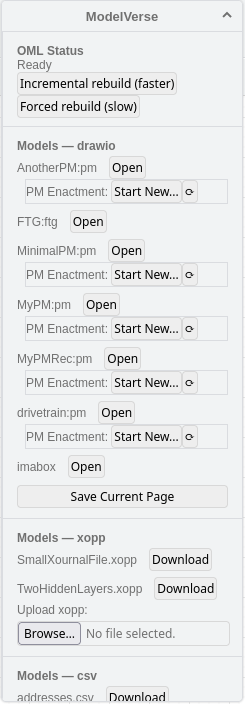

The floating panel allows for manipulating the models. This includes loading them in and storing them.
WARNING: Do not use the built in save function when saving model to the Knowledge Graph! Always use the options provided in the floating panel.
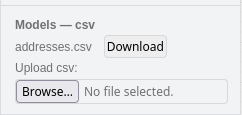
To load in a model from the Knowledge Graph, you can click on the Open button in the floating panel next to the model you want to get.
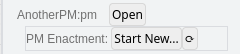
Their annotations correspond to the type of the model.
For example, AnotherPM:pm will be a process model because of the pm after the colon.
Once you have modified the model to your heart's delight, you can proceed to save it using the Save Current Page button.

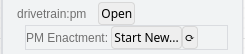
We also provide a shortcut to the enactment engine for each process model. To start the enactment, you can press the Start New... button next to the process model you want to enact. This will take you to the Workflow Enactment Engine.
Here is a short video showing the saving process. And a quick demo of the possible context menus.
Seite löschen